

Convert a PDF to Word and check the result
A PDF describes a fixed page, while Word lays out paragraphs as their content changes. Check how the source text is stored before choosing a conversion workflow. The downloadable example below helps you try the process and identify what to inspect in your own documents.
Use the toolChoose a PDF with usable text
Select a sentence in your PDF viewer and copy it. Selectable text gives the converter text to reconstruct into paragraphs and tables. If copied text comes out in an unusual order or small fragments, inspect the resulting layout carefully.
Scans and photographs may contain only images. PDF to Word currently does not run OCR. Saving an image in DOCX does not make its lettering editable; use a text-based PDF or the original authoring file when you need to rewrite that text.
Try a real conversion example
MirPDF wrote this one-page English document and simple table. The DOCX below is the actual output from the public converter. Try editing a sentence and a table cell. Results for other languages and complex layouts need their own checks.
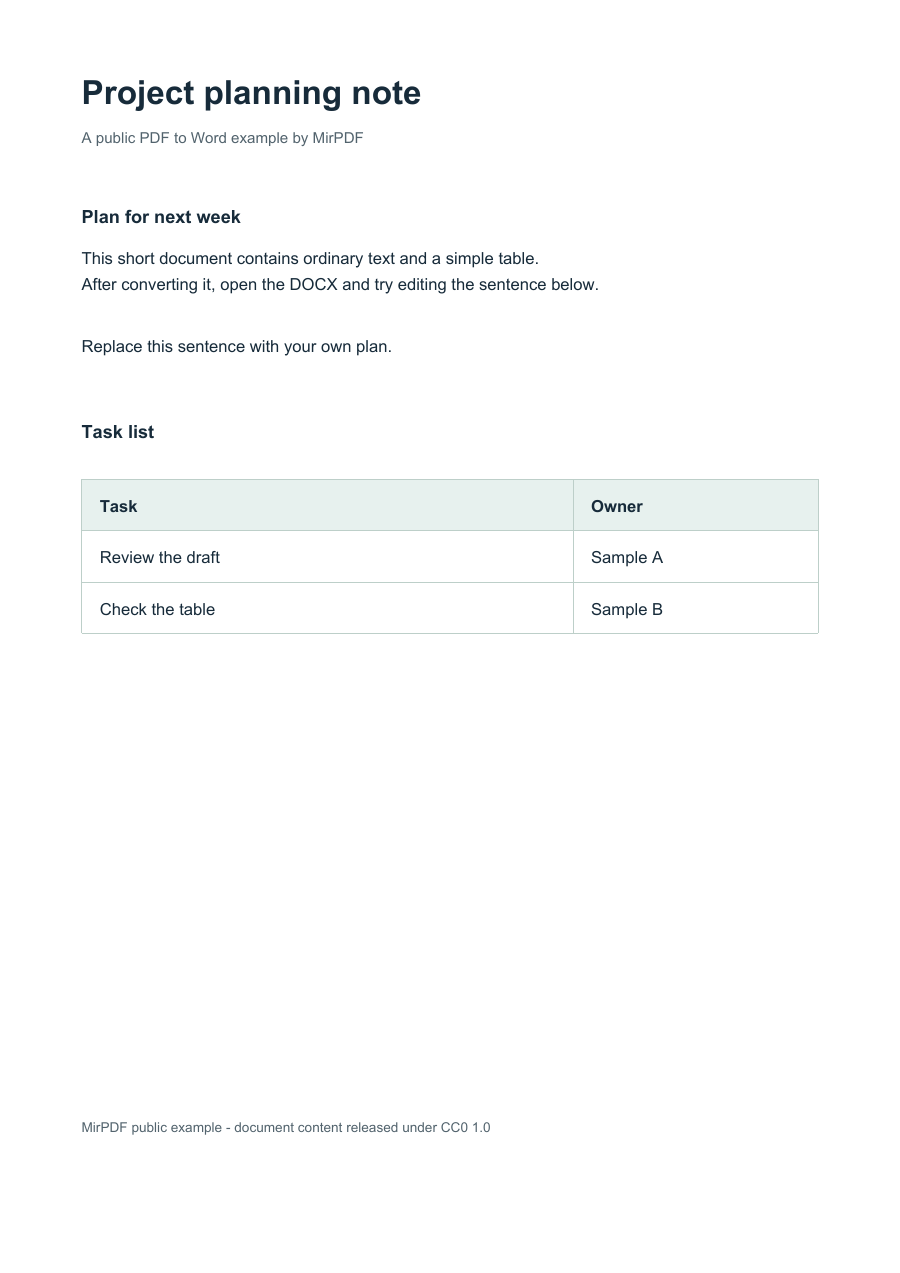
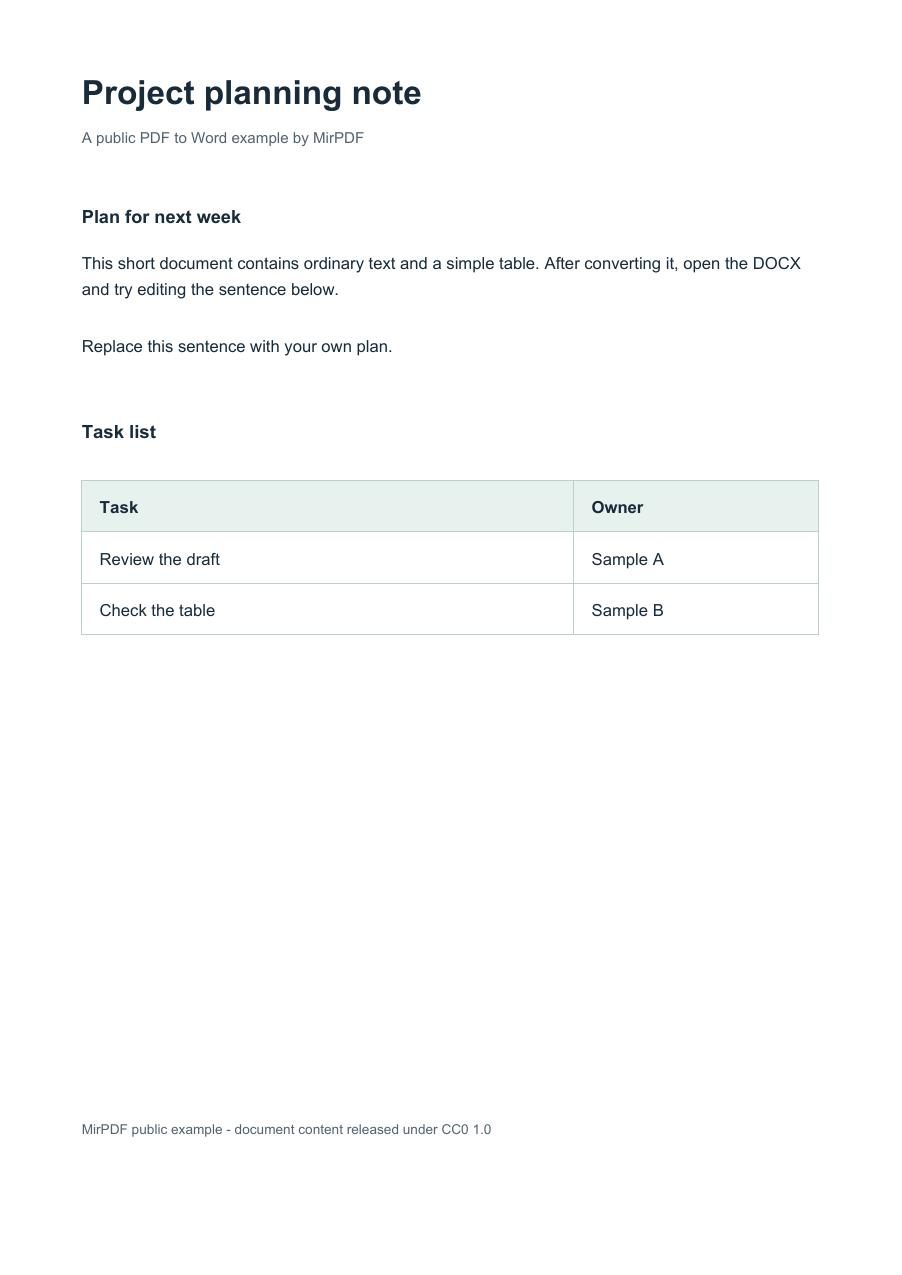
How to use
Check and select the source
Check whether text can be selected, then choose the PDF. Use the file-count and size limits shown below; split the work into smaller batches if necessary.
Convert to Word
Start conversion and keep the tab open until it finishes. A new DOCX is produced; changing a filename extension is not conversion.
Download and try an edit
Open the DOCX and edit a sentence and a table cell. Save and reopen it to check text, row heights and page boundaries before continuing your work.
Check text, tables and page boundaries
Start with headings and body sentences, then compare table rows and columns, captions and text near page boundaries. Missing fonts can change line breaks and page counts.
Ordinary paragraphs and table cells can be edited. Complex positioning may be retained with text boxes, so check available space after adding longer text. Equations or pictures retained as images cannot be typed into like a paragraph.
Word and LibreOffice can lay out the same DOCX differently. If your workflow involves both, reopen the final saved file in the program where it will be used and check pages and tables there.
Processing and saved results
Conversion runs on your device in the current browser. Document contents, filenames and passwords are not sent to a conversion server or included in ad requests. Larger files and longer documents need more device memory and time.
Download the DOCX when processing finishes. Saved files use storage in the same browser, with the selected expiry period and storage limits. Keep your own copy of important results and the original PDF.
Troubleshooting
Some text is still an image
The source may be a scan or contain that region as artwork. This tool does not turn lettering inside an image into editable text. Use a text-based source or the original authoring file.
Tables or page counts changed
Check fonts, line breaks, cell spacing and the amount of text added. Extra pages can be a normal result of longer content. Review required content and print preview before submitting the document.
New text changes formatting after saving
If you kept both the original converted DOCX and the edited saved file, the linked formatting-repair tool may support that change. It does not repair every layout difference or undo your edits.